
Lian Li SM088X 8.8" Universal LCD Screen with ARGB Frame, Black
4.4Editor score
Adjustable height and tilt bracket
Customizable diffused ARGB lighting
Independent USB secondary display
L-Connect 3 personalization
A PC thermal monitoring display turns the hidden activity inside a desktop into a clear, glanceable dashboard. The best models combine readable temperature and load information, useful customization, simple USB connectivity, and a slim format that suits modern gaming or workstation cases. They can also display clocks, fan speeds, memory usage, network activity, and custom visuals.
This guide compares ten PC thermal monitoring displays based on their stated panel size and resolution, supported hardware sensors, operating-system requirements, connection methods, mounting options, software features, and physical dimensions. The list includes sensor panels, USB secondary displays, and multifunction case screens, with special attention to whether they can function as true extended desktops.
Each review explains who the display is best suited for, what makes it distinctive, and where its limitations may matter. The top picks highlight the strongest combinations of monitoring, customization, installation convenience, and value. Product listings and pricing can change, so readers should confirm current specifications, compatibility, and availability before purchasing.
4.4Editor score

4.3Editor score

4.0Editor score
As an Amazon Associate we earn from qualifying purchases.
The comparison below places every display side by side, emphasizing panel format, connection method, monitoring software, installation approach, and practical extras such as extended-screen support or ARGB lighting.


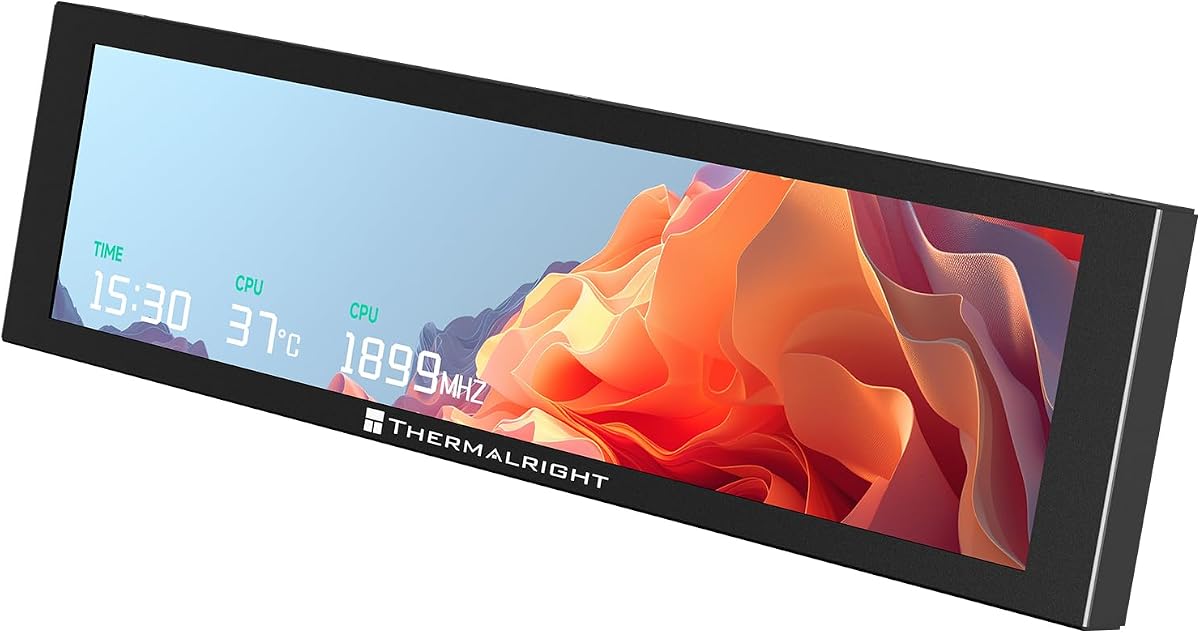
The Thermalright Trofeo Vision LCD AIO Display 9.16” PC Monitor combines a wide sensor canvas with one of the most approachable monitoring packages in this guide. Its 1920×480 panel is designed around a low, horizontal format that works well inside a gaming PC. The supplied information lists a 4.2 rating, while the monitoring and customization features make it a practical all-around choice for PC enthusiasts.
We may earn a commission when you buy through this link, at no additional cost to you.
Its principal strength is the range of information that can be shown at a glance. CPU and GPU temperatures, fan speed, memory usage, and other system statistics are supported through Thermalright TRCC software. Multiple preset themes and DIY customization give users a way to change the appearance without treating the display as a static utility panel. The ability to combine monitoring with personalized visuals also makes the product more engaging during everyday use.
Connectivity is refreshingly straightforward because the display uses a plug-and-play USB-C interface and is described as working with most Windows systems without complicated drivers. Its listed dimensions of 251 by 68 by 17 millimeters keep it slim enough for internal installation, yet the same compactness also allows it to sit outside a case. The trade-off is that a 9.16-inch ultrawide strip is not a conventional desktop monitor, and buyers who require macOS or Linux support should verify the software requirements before buying.
This is a strong recommendation for a gamer or enthusiast who wants a dependable internal dashboard with plenty of customization. It is particularly attractive when a second full-size monitor would consume valuable graphics output space or interrupt the clean appearance of a glass-sided build. The combination of sensor coverage, compact construction, and software-led personalization gives it the broadest appeal among the picks.
The wide LCD format provides enough horizontal space for several readings to remain visible at once. CPU and GPU temperatures, fan speed, memory use, and other system details can be arranged into a layout that is easier to scan than a stack of tiny desktop widgets.
TRCC software adds preset themes and DIY layouts without requiring HDMI or DisplayPort connections. This keeps the graphics card's valuable display outputs available while giving the build a dedicated monitoring surface.
We may earn a commission when you buy through this link, at no additional cost to you.
The darkFlash V92 9.2" is a case-oriented sensor display with an unusually broad collection of monitoring and entertainment widgets. Its 4.1 rating reflects a generally capable product, while the combination of an IPS panel, free Station Space software, and flexible USB connections makes it a strong option for builders who want more than temperatures alone.
We may earn a commission when you buy through this link, at no additional cost to you.
The panel uses a 1920×462 resolution and is intended to display CPU and GPU temperatures, utilization, RAM, fan speeds, clocks, weather, news, and custom widgets. The free software also supports JPG, GIF, and MP4 content. This makes the V92 useful as a compact information rail inside a case, where weather, headlines, or media can complement traditional sensor readings.
Installation is flexible because it can connect through an external USB port or an available motherboard USB 2.0 9-pin header. Included cables support both routes, and no HDMI or DisplayPort connection is needed. A slim aluminum body measuring 242.4 by 63.1 by 12 millimeters can be mounted horizontally or vertically with the included fan bracket and rear threaded holes. Buyers must verify case clearance, especially in compact builds.
The main limitation is the requirement that Station Space remain running, plus a strict Windows 10 and 11 compatibility statement. It is not designed for macOS or Linux. Even so, the V92 is a compelling choice for users who want flexible widgets, media, and reliable sensor data in one relatively thin case display.
Station Space expands the panel beyond conventional PC sensors with weather, news, stock information, images, GIFs, and video. That flexibility lets the display serve as both a monitoring strip and a rotating information hub.
External USB-C and internal 9-pin connections give the V92 two practical paths into a build. The included fan mounting bracket and threaded-hole support also permit horizontal or vertical positioning where case geometry allows.
We may earn a commission when you buy through this link, at no additional cost to you.
The Lian Li SM088X 8.8" Universal LCD Screen with ARGB Frame, Black stands out as the most polished premium option in the list. Its 4.4 rating is the highest among these ten products, and the combination of an adjustable bracket, diffused ARGB illumination, and independent USB operation gives it a distinctly integrated appearance.
We may earn a commission when you buy through this link, at no additional cost to you.
L-Connect 3 provides preset themes, modular information, and the ability to upload personal photos and videos. The panel can operate as a secondary display for hardware statistics, media, or custom visuals, connecting through a 9-pin port or Type-A USB without occupying a graphics output. The diffused ARGB strip can be coordinated with the rest of a system, making this more than a utilitarian sensor panel.
Mounting is one of its strongest attributes. The bracket supports height and tilt adjustment and can attach to fan frames, case panels, or flat surfaces using adhesive pads. Installation does require attention: the guide specifically says to use the H screws from the manual and not the longer screws marked G. That caveat is important for buyers who want a clean, secure fit without risking damaged mounting points.
Choose the black version if you want a coordinated case aesthetic, adjustable viewing, and an integrated lighting effect. It suits builders willing to use L-Connect 3 and follow the mounting instructions carefully. For a premium panel that does more than display sensor data, the SM088X is the strongest fit.
The diffused ARGB frame provides a softer visual accent than exposed LEDs and can be synchronized through L-Connect 3. Combined with the black enclosure, it creates a more cohesive premium appearance.
Height and tilt adjustments make it easier to align the display with a case fan, motherboard tray, or side panel. The included mounting approaches broaden placement options without requiring a dedicated display bracket.
We may earn a commission when you buy through this link, at no additional cost to you.
The Thermalright Trofeo Vision LCD AIO Display 11.3” PC Monitor is the largest-screen option in this guide, offering a broad canvas for system statistics and personalized content. Its 3.8 rating places it behind several alternatives, but its 1920×480 format, slim profile, and monitoring software remain relevant for builders with a case that can accommodate the longer enclosure.
We may earn a commission when you buy through this link, at no additional cost to you.
The display can present CPU and GPU temperatures, fan speed, memory usage, and other performance information through TRCC. Preset themes and DIY options let users decide how much information appears and how the interface fits the build. This is useful when a user wants more breathing room than a compact 8.8-inch model offers while retaining the narrow shape of a sensor strip.
The listed dimensions are 272 by 70 by 14 millimeters, making it thin but substantially longer than the 9.16-inch Trofeo Vision versions. Case clearance therefore deserves careful attention, particularly when the panel must sit beside a radiator or inside a tightly packed chassis. The USB-C connection is listed as a simple plug-and-play route for compatible Windows systems.
This display makes the most sense for a builder who values screen area and accepts a longer physical footprint. It is less compelling if fit is uncertain or if the highest listed rating is a major priority. With good clearance, however, the 11.3-inch size offers a useful combination of monitoring capacity, customization, and low-profile construction.
The wider physical canvas can make multiple gauges, labels, and background elements easier to arrange. It is particularly helpful when the goal is to create a miniature information station rather than a single compact temperature strip.
A stated thickness of 14 millimeters supports a clean internal installation, but the 272-millimeter length may conflict with radiators, cable routing, or tight case designs. Measuring before ordering is essential.
We may earn a commission when you buy through this link, at no additional cost to you.
The white Lian Li SM088X 8.8" Universal LCD Screen with ARGB Frame is functionally similar to the black edition but better suited to pale or contrasting case designs. It shares a 4.4 rating and adds a clearly stated 60Hz IPS panel with 1920×480 resolution and 500-nit brightness, making it a strong premium aesthetic choice.
We may earn a commission when you buy through this link, at no additional cost to you.
L-Connect 3 controls preset themes, modular information, personal videos, and photos. The screen can function as an independent USB-powered secondary display for stats or media, freeing GPU display outputs for other equipment. A diffused ARGB frame adds a customizable glow, while the white enclosure creates a clean, deliberate look rather than the visually recessive treatment of a dark panel.
The included mounting bracket supports height and tilt changes, allowing the display to be aligned with fan frames or case panels. As with the black version, users must use the H screws specified in the manual and avoid the longer screws marked G. Custom layouts can switch temperature between Celsius and Fahrenheit, although preset templates use a fixed unit, which is worth knowing before creating a themed layout.
This is the best option among the picks for a builder making a white or pastel-themed system where conventional black hardware would interrupt the design. It is also a solid premium monitor for any build that values brightness, adjustable positioning, and coordinated lighting. Buyers seeking only basic temperature readouts may find simpler panels sufficient.
The stated 500-nit brightness and 60Hz IPS panel should make the compact display easy to read in a typical case environment. A 1920×480 resolution provides a wide workspace for sensor rows, clock information, or media.
The white enclosure and customizable diffused lighting allow the display to become a deliberate part of the case design. It pairs naturally with light components, glass panels, and restrained cable-management schemes.
We may earn a commission when you buy through this link, at no additional cost to you.
The TR Trofeo Vision 9.16in LCD PC Sensor Panel is a straightforward, budget-oriented route into a dedicated PC monitoring display. Its 4.0 rating is respectable for the category, and the 1920×480 strip can show temperatures, clock speeds, fan speeds, CPU and GPU utilization, memory use, and network activity.
We may earn a commission when you buy through this link, at no additional cost to you.
Bundled software allows users to create layouts and supports static images, animated GIFs, and video clips. That gives the panel more visual range than a basic temperature-only screen. A single USB Type-C cable carries both power and video signal, which simplifies internal cable management and avoids adding another cable specifically for display power.
The slim panel measures 251 by 68 by 17 millimeters and comes with mounting accessories for locations along the motherboard tray, near radiators, or behind a glass side panel. Its physical design is compact enough for a wide range of desktop cases, although the installer should still check for obstructions around fans, tubing, and motherboard accessories.
This is a good match for a first case display, a practical monitoring upgrade, or a system where visual simplicity matters more than advanced desktop functionality. It requires its software to provide the monitoring and visual features, so buyers who prefer a completely driverless experience should review the setup process before ordering.
Sending power and signal through USB Type-C keeps the visible cable count low. That is particularly helpful behind a glass panel, where a short and tidy connection can preserve the appearance of the build.
Static artwork, GIFs, and video clips can be combined with sensor layouts. This makes the panel useful for rotating build themes while retaining key temperature and load information.
We may earn a commission when you buy through this link, at no additional cost to you.
The 9.2" IPS Mini Monitor stands out with the highest listed rating in the guide, a 5.0, and a practical combination of case monitoring and freestanding use. Its 1920×462 IPS panel, 60Hz refresh rate, and anti-scratch glass make it a polished option for users who want the display to work both inside and outside a desktop chassis.
We may earn a commission when you buy through this link, at no additional cost to you.
The included USR software displays CPU, GPU, and RAM usage and temperature, time, network speed, and additional information. Users can create static wallpapers, dynamic video backgrounds, and adjustable sensor layouts, then select content from an online theme library. Hotkey theme rotation is also listed, making it convenient to cycle among frequently used dashboards.
Its connection design is one of the most useful features. An integrated 4-pin to 9-pin adapter plus USB Type-C cable carries power and data, so no separate HDMI connection or external power adapter is necessary. The included multi-angle stand supports landscape and portrait positioning, while screws and adhesive pads support internal case mounting. The aluminum alloy frame and anti-fingerprint rear cover also help with appearance and maintenance.
The critical limitation is that it is a sensor display rather than a true extended PC screen. It supports Windows 7 64-bit or later but does not support macOS, Linux, or Chrome OS. For a Windows builder seeking an adaptable and highly rated sensor panel, it is an excellent recommendation.
The multi-angle stand lets the panel be used as a desktop display or mounted vertically inside a case. This is more flexible than products that are designed exclusively for a specific fan position or case panel.
The included software combines sensor information with wallpapers, video backgrounds, an online theme library, and hotkey switching. Users can create a purpose-built dashboard instead of accepting a fixed monitoring layout.
We may earn a commission when you buy through this link, at no additional cost to you.
The MT-VIKI 9.2 Inch USB PC Secondary Screen is the most flexible option for users who may want to place actual application windows on a slim display. Its 4.0 rating is supported by a broad feature set, including updated extended desktop mode, hardware monitoring, custom layouts, and dynamic media backgrounds.
We may earn a commission when you buy through this link, at no additional cost to you.
CPU and GPU temperatures, loads, RAM, HDD, and network speeds are all available as dashboard data. The software also supports MP4, MOV, and GIF loops alongside custom technical themes. In extended desktop mode, users can drag application windows or widgets onto the panel, with software automatically scaling them to the unusually wide 1920×462 format.
The display communicates through a single USB connection and does not require HDMI or a dedicated graphics output. It is compatible with 64-bit Windows systems, but not with macOS, Linux, or Chrome OS. A built-in Game Mode pauses dynamic video backgrounds while gaming to reduce CPU and RAM usage and help maintain stable frame rates.
The package includes a 1.5-meter USB-C cable, a desktop stand, and a 50-centimeter internal 9-pin motherboard cable for case mounting. It also supports horizontal and vertical rotation. Its main disadvantage is that it is not plug-and-play: the dedicated software must be installed and updated to use the extended screen function. That makes it best for Windows users who value desktop utility more than immediate setup simplicity.
Extended desktop mode lets compatible application windows and widgets occupy the ultrawide bar. This is useful for compact task lists, chat windows, system utilities, or other information that benefits from a separate surface.
Game Mode pauses dynamic video backgrounds while gaming. The goal is to lower unnecessary CPU and RAM usage, which helps the display avoid competing with demanding games for system resources.
We may earn a commission when you buy through this link, at no additional cost to you.
The Thermalright Trofeo Vision 9.16 LCD Black is designed around convenient magnetic mounting. Its 3.8 rating is among the lower scores in the list, but for builders who frequently adjust their layout or want to move the panel between a metal chassis and desktop, that installation method addresses a practical problem.
We may earn a commission when you buy through this link, at no additional cost to you.
The 9.16-inch full-color IPS panel uses a 1920×480 resolution and is described as having stable viewing angles. TRCC software provides system monitoring, static and dynamic image switching, video playback, and DIY theme creation. Once installed, the software can start automatically with the computer and remain available from the taskbar, simplifying day-to-day operation.
Power and data communication are provided through the motherboard's 9-pin USB interface, while the listed connector is USB Type-C. The metal frame and magnetic design allow the screen to attach without screws to compatible metal surfaces. This makes removal and repositioning convenient, although it also means the display cannot be securely mounted to every material using the magnetic system alone.
This is a good recommendation for a builder who values flexibility and quick physical changes over the highest listed rating. It can serve as an internal dashboard, sit near radiators, or move to a metal desktop as needs change. Buyers should ensure the intended mounting location is suitable for a magnet and that the internal USB connection is routed cleanly.
The screw-free magnetic design allows the display to be removed, repositioned, or taken between compatible metal surfaces. It is particularly helpful during case planning or when a builder wants to change the viewing angle.
TRCC supports sensor monitoring, image switching, video playback, and personalized themes. The full-color IPS panel is intended to make those visuals more vivid and readable from different angles.
We may earn a commission when you buy through this link, at no additional cost to you.
This Thermalright Trofeo Vision LCD AIO Display 9.16” PC Monitor is a refined, highly rated version of the popular compact format. Its 4.3 rating gives it a strong balance of customer feedback and feature coverage, while the 1920×480 panel provides enough room for several system statistics and a visually distinctive layout.
We may earn a commission when you buy through this link, at no additional cost to you.
CPU and GPU temperatures, fan speed, memory usage, and additional system parameters can be monitored in real time. TRCC software supplies multiple preset themes and DIY customization, allowing users to build a layout that suits the case or switch to a personalized visual between monitoring sessions. The product is therefore useful both as a functional dashboard and as part of a coordinated build.
Its listed dimensions of 251 by 68 by 17 millimeters make it slim and easy to place inside or outside a PC. Plug-and-play USB-C connectivity is highlighted as a simple alternative to complicated driver arrangements, with compatibility stated for most Windows systems. The screen does not need a graphics output, which is valuable in builds where every GPU port is already occupied.
This model is a compelling choice for a straightforward internal monitor and an attractive alternative to a full-size secondary display. It is not a general-purpose extended monitor, and users outside the Windows ecosystem should verify support. Within its intended category, it delivers an effective mixture of monitoring depth, customization, compactness, and straightforward setup.
The wide screen can present several key readings at once, including processor and graphics temperatures, fan speed, and memory use. That makes it easier to identify changing conditions without opening a full monitoring window.
USB-C power and communication and TRCC-based control keep the installation approachable. The compact body can then be placed inside or outside the case according to the build's layout and visibility needs.
We may earn a commission when you buy through this link, at no additional cost to you.
The right thermal monitoring display depends on how it will be installed, which operating system you use, and whether you want a dedicated sensor panel or a true extended screen. Panel dimensions, aspect ratio, connection method, software, and mounting requirements should be evaluated together.
A useful monitoring display should show the information you actually check during normal use. Common readings include CPU and GPU temperature, utilization, memory use, fan speed, network activity, storage status, and clock speed. The available software also determines how those values are organized, whether layouts can be edited, and whether alerts, themes, media, or widgets are supported. TRCC, Station Space, L-Connect 3, USR software, and the MT-VIKI application each have different strengths, so no single interface is ideal for every build.
Most products in this category use a stretched format because it fits naturally along a case fan, radiator, or motherboard tray. Screen sizes range from 8.8 to 11.3 inches, while common resolutions are 1920×480 and 1920×462. A larger panel can make complex layouts more legible, but it also requires more physical clearance. An ultrawide strip is optimized for sensor rows and widgets rather than ordinary desktop applications.
USB-C and internal 9-pin connections are the most common options. A single USB-C cable can simplify external placement, while a 9-pin motherboard header is useful for fully internal installations. Some products support both. Additional HDMI or DisplayPort connections are generally unnecessary for sensor-only panels, and avoiding them can leave graphics outputs available for high-resolution displays. Extended-desktop models still require their software and a compatible USB data path.
Most PC thermal monitoring displays in this guide are designed for Windows. Station Space is limited to Windows 10 and 11, the 9.2-inch IPS Mini Monitor supports Windows 7 64-bit or newer, and the MT-VIKI model requires 64-bit Windows. Several products do not support macOS, Linux, or Chrome OS. Buyers outside Windows should treat these statements as a hard compatibility boundary rather than assuming standard USB display behavior will provide equivalent sensor access.
A sensor panel is dedicated to system statistics and custom visuals, while an extended display can host movable application windows and widgets. Extended desktop support is explicitly highlighted for the MT-VIKI model and is also available in some general descriptions of the Lian Li and other products. Sensor-only displays are usually simpler for monitoring, but they cannot substitute for a conventional monitor. The distinction matters if you want chat windows, task lists, or utilities on the panel.
Case displays are available with fan brackets, screws, adhesive pads, stands, and magnetic attachment. Before buying, measure the intended area and account for radiators, tubing, motherboard accessories, and tempered-glass panels. The darkFlash V92 specifically lists a clearance of 9.54 by 2.48 by 0.47 inches, while other products provide their own dimensions. Magnet-based products need a compatible metal surface, and adhesive pads depend on the finish and cleanliness of the mounting area.
A panel that looks good inside a glass-sided case may be just as important as one that displays accurate data. Preset themes, DIY layouts, image and video support, temperature-unit choices, and ARGB lighting vary between products. The Lian Li models add a diffused ARGB frame, while several 9.16-inch and 9.2-inch panels support animated artwork. Resolution, refresh rate, brightness, and IPS viewing angles influence readability, particularly when the screen is viewed through glass or at an angle.
Black and white versions can integrate very differently with a case. The white Lian Li model is aimed at lighter interiors, while black options blend with conventional components and dark frames. ARGB-equipped screens can coordinate with fans and memory modules, while plain sensor panels keep the build visually restrained. Cable management also affects the final appearance. A single USB-C route may look cleaner in an exposed case, whereas a 9-pin internal connection keeps the cable hidden but requires motherboard access.
Begin by confirming the operating system, required software, and available connection. Install the manufacturer's monitoring utility before mounting the panel permanently, then connect it using the supplied USB-C or internal 9-pin route. Open the software, confirm that CPU, GPU, memory, fan, and other expected readings appear, and select a preset layout before adding custom graphics or sensors.
Plan the physical placement before attaching brackets, screws, adhesive pads, or magnets. Keep the screen away from sharp edges, hot radiators, and moving fans, and route cables so they do not interfere with airflow. For products that support height, tilt, landscape, or portrait adjustment, set the final viewing angle while the case is open and then tighten the appropriate hardware. Follow the specified screw instructions carefully, particularly for the Lian Li SM088X models.
For long-term care, clean the display with a soft, lint-free cloth and avoid abrasive or liquid cleaners directly on the panel. Check that connectors remain firmly seated, and periodically confirm that sensor readings are still updating after a software update or operating-system change. Leave the required monitoring software running when the display depends on it, and use reduced-motion or game modes when background animation is not needed.
Most sensor panels in this guide send information through USB rather than HDMI or DisplayPort. This allows them to monitor a PC while leaving graphics outputs free for other displays. They still require a functioning motherboard and operating system, plus the appropriate monitoring software.
Yes, the included applications for the listed products are designed to display supported system parameters automatically. Common readings include CPU and GPU temperatures, utilization, fan speed, memory use, and network activity. The available layout and units depend on the specific software and whether the user selects a preset or custom template.
No. The supplied compatibility information explicitly limits several products to Windows, including darkFlash Station Space, the 9.2-inch IPS Mini Monitor, and the MT-VIKI display. Treat those limitations seriously because a standard USB connection does not guarantee that the monitoring application or extended-desktop functions will work on another operating system.
A sensor panel is designed primarily for system statistics, themes, images, and widgets. An extended display can also act as a secondary desktop where compatible application windows can be moved and scaled. The MT-VIKI model explicitly supports extended desktop mode, while other products may remain dedicated to monitoring or personal content.
The required space varies by model, ranging from compact 8.8-inch panels to the longer 11.3-inch Thermalright display. Measure the open area, subtract clearance for connectors and cables, and check for radiator, fan, and motherboard interference. The darkFlash V92 specifically requires 9.54 by 2.48 by 0.47 inches of clearance.
The display itself is lightweight, but its software can consume some system resources. The MT-VIKI model addresses this with a Game Mode that pauses dynamic video backgrounds during games. For other products, use static monitoring layouts and avoid unnecessary animated media when smooth frame rates are the priority.
It depends on the model and bracket. The darkFlash V92 supports horizontal or vertical installation, while the MT-VIKI package supports H/V rotation. Other products may rotate their content or support particular case placements without offering a full vertical mounting configuration, so check the supplied instructions and included hardware.
The products described in this guide are powered through USB using included cables or internal 9-pin connections. This means a separate display power adapter is generally unnecessary, although the PC itself must be running and connected through a data-capable USB port or compatible internal header.
The Thermalright Trofeo Vision LCD AIO Display 9.16” PC Monitor is the best overall pick because it combines a 1920×480 sensor canvas, USB-C simplicity, useful temperature and usage data, and TRCC customization in a compact enclosure. The Lian Li SM088X stands out as the premium option with adjustable mounting and diffused ARGB lighting, while the TR Trofeo Vision sensor panel delivers an approachable and economical route into dedicated PC monitoring.
Prioritize operating-system compatibility, sensor coverage, physical clearance, and the type of display you need. A sensor-only panel is ideal for temperatures, loads, fan data, and rotating build themes, while a true extended display is better for movable windows and widgets. Measure the case before ordering, confirm the connection method, and review whether the required software must remain running.
Ratings, software features, product configurations, and prices can change over time, so check the current listing before making a final decision. Comparing the current specifications with your case layout and monitoring habits will lead to the most suitable PC thermal monitoring display for your system.